Last updated: November 8, 2026
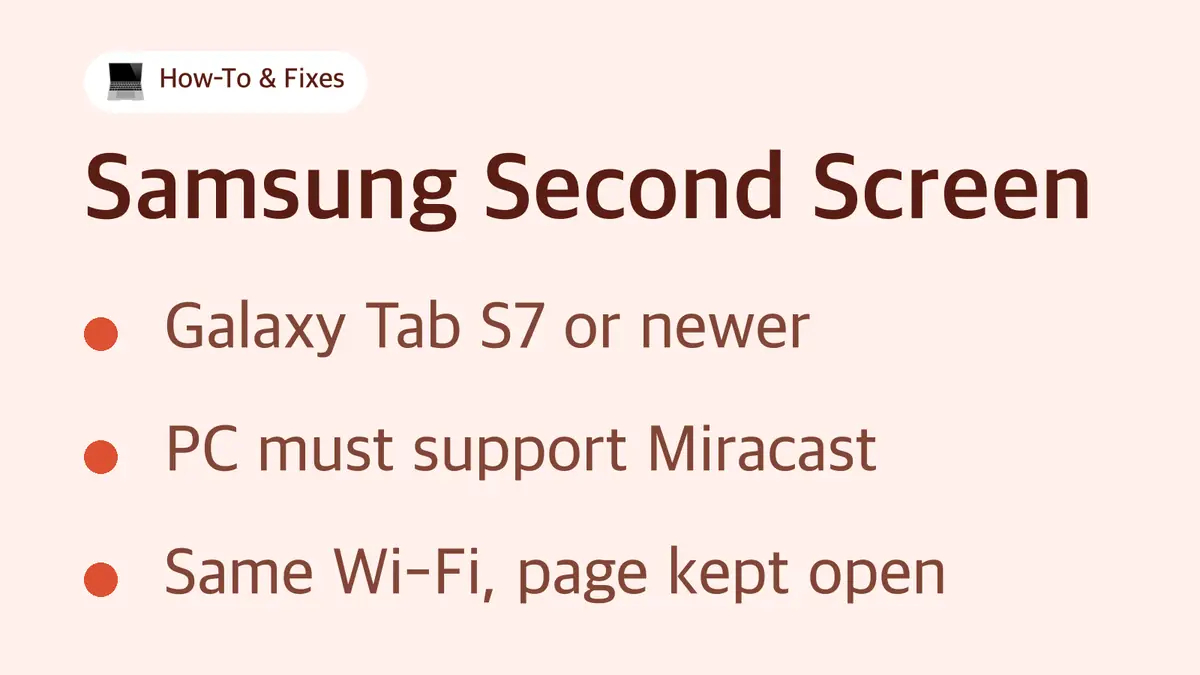
Samsung Second Screen requirements
| Device | What you need |
|---|---|
| Tablet | Galaxy Tab S7 series or newer Tab S models (Samsung Korea also lists Tab Active4 Pro and Tab Active5 Pro) |
| Tablet software | One UI 3.1 or later per Samsung US; Samsung Korea now lists One UI 5.1.1 or later and recommends 6.1.1 |
| PC | Windows 10 version 2004 or later, or Windows 11 |
| PC hardware | Wireless Display (Miracast) support from the Wi-Fi and graphics drivers |
| Network | Both devices close together on the same Wi-Fi network |
Galaxy Tab A models and Galaxy phones are not on Samsung's list. A Mac can't use Second Screen either, since it relies on Windows' Wireless Display.
How to connect your Galaxy Tab as a second screen
- On the tablet, swipe down from the top-right corner with two fingers to open Quick settings.
- Tap Second screen. Pick a mode: Drawing/gaming or Video.
- Leave the Second screen page open. The PC can only find the tablet while it's showing.
- On the PC, press Windows + K.
- Select your tablet from the list.
The PC screen now appears on the tablet. You can control it with the PC's mouse, or by touch on the tablet if you turn on touch input on the PC side.
Extend or mirror: open Display settings on the PC and choose Extend, Duplicate, or Second screen only. The tablet shows up as display 2, so drag it to the left or right of your main screen to match where it sits on your desk. You can change scale and resolution for the tablet in the same menu.
To disconnect: tap Disconnect on the toolbar at the top of the screen, or press Windows + K and select Disconnect next to the tablet's name.
Tablet not showing up? Check these 6 things
| # | Check | How |
|---|---|---|
| 1 | Does the PC support Miracast? | Press Windows + K. If Windows says you need to connect a display with a cable, the PC can't use Second Screen wirelessly. |
| 2 | Is Wi-Fi on for both? | Turn Wi-Fi on for the PC and tablet and join the same network. |
| 3 | Is the Second Screen page still open? | If you switched apps or the tablet screen turned off, reopen Second screen from Quick settings. |
| 4 | Is the tablet supported? | Tab S7 or newer Tab S. Older Tab S6 and Tab A models don't have it. |
| 5 | Are drivers up to date? | Update the PC's Wi-Fi and graphics drivers from the PC maker's support site. Microsoft lists this as a fix for wireless display problems. |
| 6 | Was it connected before? | On the PC, go to Settings > Bluetooth & devices > Devices, remove the tablet under Wireless displays & docks, restart both devices and connect again. |
Most "not working" cases are No. 1. A desktop without Wi-Fi can't use Second Screen, and some laptops' drivers don't support Miracast. Samsung's own Galaxy Book laptops add a shortcut: with the same Samsung account on both devices, the Second Screen app can connect to the last tablet you used automatically.
Laggy or blurry? Pick the right mode
Second Screen sends the picture over Wi-Fi, so it can't match a cable-connected monitor. To get the best of it:
- Choose Drawing/gaming for faster response when you write with the S Pen or move windows around.
- Choose Video for smoother playback when you watch something on the tablet.
- Keep the tablet close to the PC and on the same Wi-Fi network, as Samsung recommends.
- Lower the resolution for the tablet in Windows Display settings if text or motion stutters.
Sources
- Samsung US: Use your Galaxy tablet as a second screen with your Windows PC
- Samsung Canada: Use the Second screen feature to extend your Windows computer
- Samsung Gulf: How to use a Galaxy tablet as a second screen
- Samsung Korea: One UI Connected Experience
- Microsoft Support: Fix connections to wireless displays or docks in Windows
Supported models and Windows versions differ by Samsung region and may change.
Related guides
 Galaxy AI Supported Languages: 24, Now With Hungarian and MalaySamsung's October 2026 update brings Live Translate, Interpreter, Note Assist and Transcript Assist to 24 languages.…
 USB-C Headphone Adapter Not Working? It Likely Needs a Built-In DACIf your USB-C to 3.5mm adapter gives no sound or a "not supported" message, the adapter is usually the problem, not…