Last updated: November 16, 2026
Step 1: Rule out the simple causes
Work through these in order. Each one takes a minute, and together they fix most HDMI problems.
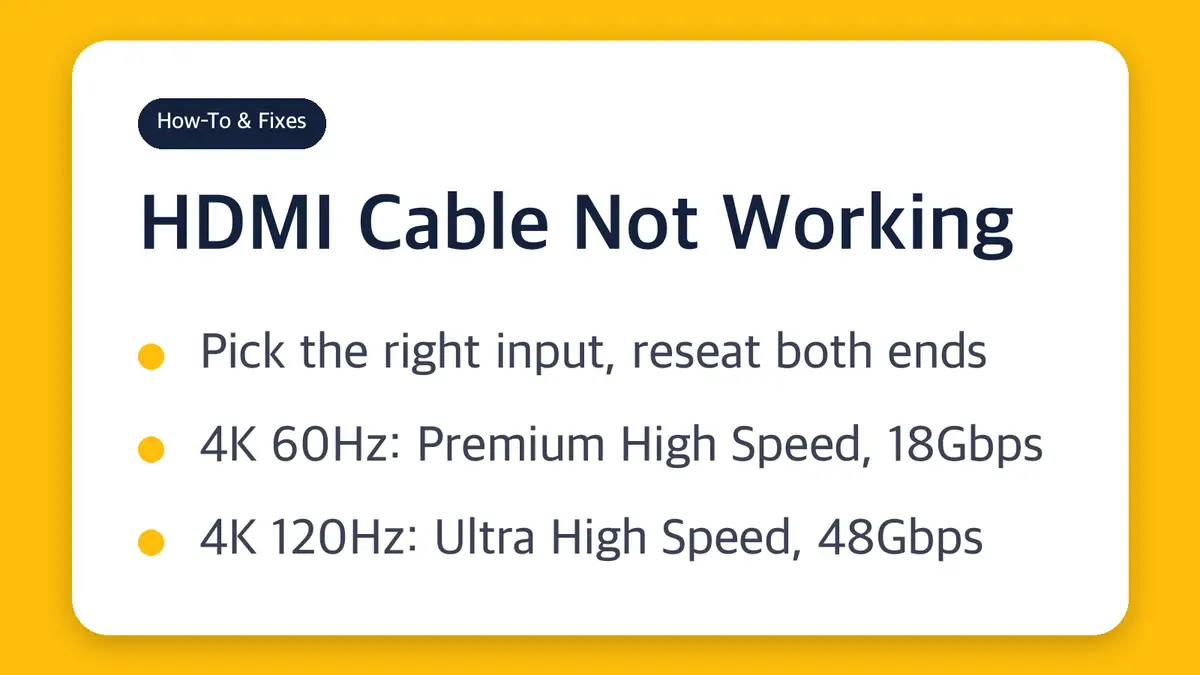
- Pick the right input. Use the TV or monitor remote, or its buttons, to choose the exact HDMI input the cable is plugged into (HDMI 1, HDMI 2 and so on). "No signal" usually means the screen is looking at an empty input.
- Reseat both ends. Unplug the cable at the source and at the screen, then push each plug all the way in.
- Remove everything in between. Sony's PS5 guide and Microsoft's Windows guide both say to take out the middlemen: soundbars, home theater receivers, capture devices, docks, dongles and adapters. Connect the source straight to the screen to test.
- Swap one thing at a time. Try a different HDMI cable, then a different HDMI port on the screen. If the old cable fails and a new one works, the old cable is your problem.
- Power-cycle. Sony's PS5 steps go further than a restart: turn off the console and the screen, unplug both power cords, wait 20 minutes, then plug them back in.
- Update the screen's firmware. Sony lists the TV's latest firmware as a fix for both "no image" and 4K 120Hz problems.
If the picture is still blank on every input, with every cable and with a second source device, the port on the screen or the source may be at fault.
Step 2: Check the cable rating for your resolution and refresh rate
If the basics check out but the picture fails, flickers or drops out only at higher settings, compare your cable with what the signal needs. HDMI Licensing Administrator (HDMI LA), which licenses the HDMI spec, sorts cables by official name, not by version number.
| What you want to run | Cable you need | Bandwidth |
|---|---|---|
| 720p or 1080i | Standard HDMI Cable | (older cable, tested for 720p and 1080i) |
| 1080p, 4K at 30Hz | High Speed HDMI Cable | up to 10.2Gbps |
| 4K at 60Hz with HDR | Premium High Speed HDMI Cable | 18Gbps |
| 4K at 120Hz, 8K at 60Hz | Ultra High Speed HDMI Cable | up to 48Gbps |
| 4K at 240Hz or 8K at 60Hz uncompressed 4:4:4 (HDMI 2.2) | Ultra96 HDMI Cable | up to 96Gbps |
A few things follow from this table:
- An old "High Speed" cable is the usual 4K 60Hz culprit. HDMI LA rates it for 4K at 30Hz, so it can work fine with a 1080p cable box and then fail when you connect a 4K streaming device or game console.
- A higher-rated cable works with older gear. HDMI LA says the Ultra96 cable can be used with existing HDMI devices, so buying up costs you nothing in compatibility.
- Standard HDMI cables are still on sale. HDMI LA notes they don't support later resolutions, refresh rates or bandwidth. Avoid them for anything newer than 1080i.
Why "HDMI 2.1 cable" isn't the label to trust
Since November 18, 2010, HDMI LA has barred cable makers from using HDMI version numbers (like "HDMI 1.4" or "2.1") on cable labels, packaging or marketing. Every cable must carry its official name, such as "Ultra High Speed HDMI Cable," printed on the cable jacket, and the package must show the cable name logo or certification label.
So a listing that says "HDMI 2.1 cable" tells you less than one that names the cable type. Versions describe devices and ports. Cables have names.
How to verify a cable before you trust it
HDMI LA warns that sellers use their own marketing terms and that some cables are counterfeits. Two programs help:
| Cable type | What to look for |
|---|---|
| Ultra High Speed and Ultra96 | Certification is mandatory. Every package or unit of sale must carry a certification label, and the cable name must be printed on the jacket |
| Premium High Speed | An anti-counterfeiting certification label with a unique QR code. Every length of every model line is tested |
Scan the QR code on the label with a standard QR code app. The result shows the brand, model number and length, which should match the cable in your hand. HDMI LA also buys certified cables from stores and online marketplaces for ongoing testing.
Step 3: 4K 120Hz on PS5, Xbox Series X and Switch 2
Game consoles are where a cable's rating shows up first, because 4K 120Hz needs every link in the chain to keep up.
| Console | What it outputs over HDMI | What the maker says you need |
|---|---|---|
| PS5 | HDMI 2.1, 4K 120Hz | A TV that supports 4K 120Hz, the cable in the box or an Ultra High Speed cable rated for 4K 120Hz, and the TV's HDMI 2.1 port |
| Xbox Series X | One HDMI 2.1 port, up to 120 FPS | Ships with an Ultra High Speed HDMI cable; 4K at up to 120 FPS requires supported content and display |
| Nintendo Switch 2 | Up to 4K at 60 fps in TV mode | 120 fps only when 1080p or 1440p is selected |
If your PS5 shows nothing, or only 1080p 120Hz, when it should be sending 4K 120Hz, Sony's checklist is:
- Confirm the TV supports 4K 120Hz.
- Update the TV to its latest firmware.
- Use the cable from the PS5 box or an Ultra High Speed cable rated for 4K 120Hz.
- Connect the PS5 directly to the TV, not through a receiver or other equipment.
- Plug into the TV's HDMI 2.1 port. Sony notes that HDMI 2.1 support may also need a setting change on the TV, and not every input on a TV is necessarily HDMI 2.1.
- On the PS5, set Settings > Screen and Video > Video Output > Resolution to Auto or 2160p, and Video Transfer Rate to Auto. The -1 and -2 transfer rates both limit 4K 120Hz.
The Switch 2 row matters for a different reason: no cable will give you 4K at 120Hz there, because the console doesn't output it.
Step 4: Laptop or PC to monitor
When a computer is the source, Windows settings can look exactly like a dead cable.
- Press the Windows logo key + P and make sure Extend is selected. Microsoft lists this as the first check for an external monitor that isn't working.
- Disconnect docks, dongles and adapters, then test with the cable straight from the PC to the monitor. Microsoft says these accessories can cause conflicts.
- Reset the graphics driver with Windows logo key + Ctrl + Shift + B. If that doesn't help, restart.
- Check the refresh rate. Go to Start > Settings > System > Display > Advanced display and use Choose a refresh rate. Rates marked with an asterisk don't support your current resolution, and picking one changes the resolution.
- Try the monitor on another computer to tell a monitor fault from a PC fault.
USB-C to HDMI adapters
A USB-C to HDMI adapter or cable needs a USB-C port that outputs video, almost always through DisplayPort Alt Mode. VESA, which publishes that standard, says the device's documentation should tell you, and some ports show a small "DP" logo next to the USB logo. VESA also says most video source devices with a USB-C connector already support DisplayPort Alt Mode, and that these adapters support HDMI 2.0 for 4K. If one USB-C port gives no picture, try another port on the same laptop.
Long cable runs: active cables have a direction
A long cable that fails when a short one works may be hitting the length limit for passive copper. HDMI LA says that for Ultra High Speed performance in cables longer than a few meters, a powered active cable is likely the only way to meet the requirements.
Active cables behave differently from ordinary ones:
- They plug in one way only. One end is labeled for the source (console, PC, streaming box), the other goes to the display. HDMI LA says a reversed cable causes no damage, but the connection will not work. Flip it.
- They may need power. If the source supports the HDMI Cable Power feature, the cable draws power from the HDMI port. If not, use the cable's separate power connector, typically USB Micro-B or USB-C.
Quick fixes by symptom
| What you see | Most likely cause | Try this |
|---|---|---|
| "No signal" on the TV or monitor | Wrong input, loose plug | Select the right HDMI input, reseat both ends |
| Works at 1080p, blank or flickering at 4K 60Hz | High Speed cable (4K 30Hz rating) | Premium High Speed or Ultra High Speed cable |
| PS5 stuck at 1080p 120Hz or blank at 4K 120Hz | Cable, TV port, receiver or transfer rate | Ultra High Speed cable, HDMI 2.1 port, direct connection, Video Transfer Rate Auto |
| Long cable fails, short cable works | Passive cable too long for the signal | Certified active cable, connected source-to-display |
| Active cable gives no picture | Plugged in backward or unpowered | Reverse it, connect its USB power lead |
| Laptop shows nothing on the monitor | Windows display mode | Windows logo key + P, then Extend |
Sources
- HDMI LA: HDMI cable types
- HDMI LA: Premium High Speed HDMI Cable certification
- HDMI LA: Ultra96 and Ultra High Speed HDMI Cables
- HDMI LA: HDMI Cable Power and active cables
- HDMI LA: Notice to manufacturers and resellers of HDMI cables
- HDMI LA: HDMI 2.2 Specification
- PlayStation: PS5 4K resolution guide
- PlayStation: Troubleshoot PS5 picture and sound issues
- Xbox: Xbox Series X
- Nintendo: Switch 2 tech specs
- Microsoft Support: Troubleshoot external monitor connections in Windows
- Microsoft Support: Change the refresh rate on your monitor in Windows
- VESA: DisplayPort FAQ
Cable names, ratings and console requirements as listed on each organization's site on November 16, 2026.
Related guides
 Laptop USB-C Charger Wattage: Match Your Brick, 5A Cable Over 60WHow many watts your laptop's USB-C charger needs, what the original adapters for MacBook Air, MacBook Pro, Galaxy…
 USB-C Headphone Adapter Not Working? It Likely Needs a Built-In DACIf your USB-C to 3.5mm adapter gives no sound or a "not supported" message, the adapter is usually the problem, not…
 Samsung Second Screen: Needs a Tab S7 or Newer and a Miracast PCSamsung Second Screen turns a Galaxy Tab into a wireless monitor for a Windows PC. It needs a Tab S7 or newer and a…