Last updated: November 17, 2026
Does Samsung Gallery sync to Google Drive?
Not to a Drive folder. Samsung calls the feature Gallery Cloud Sync with Google, and its support page describes it as a two-way sync run jointly by Samsung Gallery and Google Photos. Everything you sync is stored in your Google Account storage and can be viewed in Google Photos.
Google Drive comes into it only because Drive, Gmail, and Google Photos all draw from the same storage pool. You won't find a "Samsung Gallery" folder in My Drive.
| What you want | Use this |
|---|---|
| Automatic backup that stays in Samsung Gallery | Gallery > Settings > Sync photos and videos |
| Photos as files inside a Drive folder | Google Drive app > New > Upload |
| See synced photos on the web or another phone | Google Photos app or website |
This replaced the old OneDrive link. Direct sync between Samsung Gallery and OneDrive ended on September 30, 2026.
Who can use it
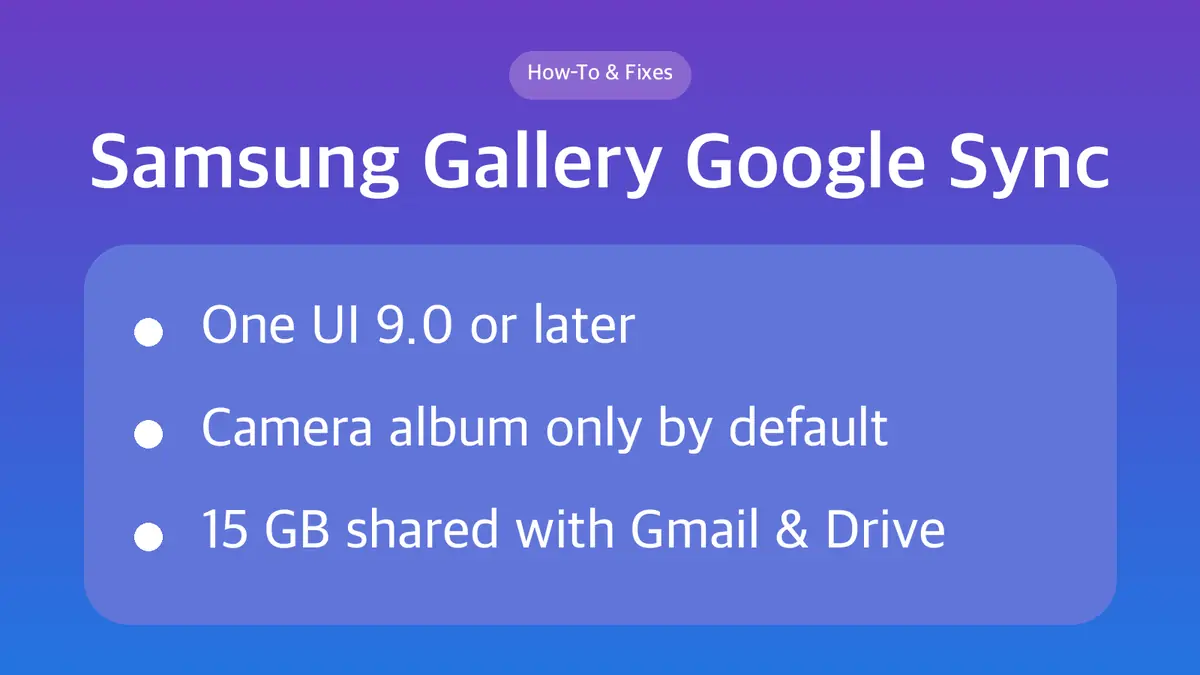
- Software: One UI 9.0 or higher. Samsung says support is coming to earlier versions over time.
- Devices: Select Galaxy phones and tablets, with more added in phases. Availability can vary by device, country, carrier, and software version.
- Accounts: You need to be signed in to both a Samsung account and a Google account. Samsung's support page for India adds that it must be a personal Google account. Google Workspace accounts and accounts supervised by a parent can't use it.
- Apps: You don't need the Google Photos app installed. Gallery sync is a separate service from Google Photos backup.
If Sync photos and videos isn't in your Gallery settings, your phone, carrier, or region isn't supported yet, or the phone hasn't received One UI 9. Install any pending software update, and the option appears once Samsung adds your device.
How to turn on Samsung Gallery sync with Google
- Open the Gallery app and tap Menu at the bottom right.
- Tap Settings.
- Tap Sync photos and videos. If you aren't signed in to a Samsung account, follow the prompts to sign in and allow permissions, then tap Sync photos and videos again.
- Turn on Sync with Google and tap Continue.
- Review the linked Google storage screen. You can come back here later to check usage.
- Syncing starts. The status shows at the top of the Gallery app.
You can also start from the Cloud icon in Gallery or the Get started button on a tip card. All three routes end at the same screen.
To confirm the link later, open phone Settings > your Samsung account > Profile info > Linked accounts.
Add Screenshots and other albums
This is the step most people miss. Upon setup, only the Camera album uploads by default. Screenshots, Downloads, and folders made by messaging apps stay on the phone until you add them:
- Open Gallery > Menu > Settings.
- Tap Sync photos and videos > Albums to sync.
- Select every album you want backed up.
Samsung's India page notes you can even stop syncing the main camera roll and keep syncing specific local folders.
SD card photos don't sync. Samsung treats the SD card as external storage. Move those files to internal storage first, then select their album under Albums to sync.
File limits: Photos up to 200 MB and videos up to 20 GB can be uploaded. Supported formats include JPG, PNG, HEIC, AVIF, and select RAW files for photos, and MP4, MOV, and MKV among others for video. Samsung says these can change with Google's upload policies.
How much storage you get
Samsung Gallery sync uses the 15 GB of free storage that comes with every Google account. Samsung's press release notes that the sync does not add a separate storage allowance. That 15 GB is shared with Gmail, Google Drive, and Google Photos, so what's left for photos depends on what you already use.
| Google storage | Total space for Photos, Drive, and Gmail |
|---|---|
| Free | 15 GB |
| Google One Basic | 100 GB |
| Google AI Plus | 2 TB |
| Google AI Pro | 5 TB |
The free 15 GB is counted inside each paid plan's total, not added on top. If you already pay for Google One, pick the Google account tied to that plan when you link Gallery.
From the sync screen, Clean up space opens Google's storage cleanup and Get more storage takes you to the upgrade options.
What happens when you run out comes from Google's storage rules. Over quota, you can't back up new photos and videos to Google Photos, most Drive actions are restricted, and Gmail sending and receiving can be affected. If an account stays over quota for 2 years, Google may delete its content, with at least 3 months of notice first.
Free up space on your phone
Once items have synced, the Free up space option removes the original files from your device and keeps thumbnails in Gallery. The originals stay in Google storage, so you can download any file you need later.
If you also back up with Google Photos and use its Storage saver quality, note one difference: files that go up through Gallery sync are saved in original quality. Photos already backed up by Google Photos aren't uploaded twice and won't show as duplicates.
Deleting a synced photo deletes it everywhere
Because the sync runs both ways, a delete is a delete on every side:
- Delete a synced photo in Gallery, and it's removed from your Google storage and from other Galaxy devices signed in to the same Samsung and Google accounts.
- Delete it in Google Photos, and it disappears from your Samsung phone and the Gallery app too.
- Deleted items sit in the Trash for 30 days. Restore them from Gallery > Menu > Trash > select > Restore.
- Emptying the Gallery Trash permanently removes the originals from Google storage.
So don't use Google Photos to "clean up the cloud" while keeping the phone copy. If you want an independent copy of important photos, keep one on a computer or external drive as well.
Turning sync off is different from deleting. Your already-synced photos stay in Google storage, cloud-only items are hidden in Gallery (not deleted), and anything you add, edit, or delete while sync is off won't reach the cloud.
What you'll see on a tablet or new phone
Sign in to the same Samsung account and the same Google account on each supported device and turn on sync there. A photo you take on your Galaxy phone then appears in Gallery on your Galaxy tablet.
On a new Galaxy phone, turning on sync shows previews of your library. The originals stay in Google storage, and you download only the files you need instead of the whole library.
One limit surprises people: Gallery shows only photos synced through Gallery after you turned sync on. Photos already in your Google account from before stay in the cloud but don't appear in Gallery automatically.
Tech press coverage citing Google's help page, including Digital Trends, also reports that media synced from Samsung Gallery won't appear in Google Photos Memories and highlights, Live albums, or Search unless it's also backed up through the Google Photos app.
Where your old OneDrive photos went
Microsoft says photos already in OneDrive are not deleted or modified. They disappeared from Samsung Gallery after the cutoff, but you can still open them at onedrive.com or in the OneDrive app.
- To keep backing up to OneDrive: open the OneDrive app, tap your account profile at the top left, select Camera backup, confirm the account, and turn it on.
- To bring photos back to the phone: in the OneDrive app, open the Gallery tab, select photos (touch and hold the first one to pick several), and tap Download.
- Deleted something by mistake? Samsung's US support page says OneDrive keeps deleted photos in the Recycle bin for 93 days.
Downloaded files may land in an album other than Camera, so check Albums to sync if you want them in your Google storage too.
Put photos in a Google Drive folder instead
If you really want files in My Drive, maybe to share a folder or because your phone isn't on One UI 9 yet, upload them by hand:
- Open the Google Drive app.
- Tap New > Upload.
- Pick the photos or videos.
- Find them in My Drive until you move them.
This is a one-time copy, not a sync. Later edits or deletes in Gallery won't follow the files. To save mobile data, open Drive's Menu > Settings and turn on Transfer files only over Wi-Fi.
Sources
- Samsung Canada: How to sync your Gallery to the cloud with a Google Account
- Samsung Mobile Press: Samsung Gallery Makes It Easier to Access Photos and Videos Across Galaxy Devices
- Samsung India: How to sync your Samsung Gallery with your Google Storage
- Samsung US: How to download or delete photos previously synced with OneDrive
- Microsoft Support: Changes to Samsung Gallery sync and OneDrive
- Google One Help: How your Google storage works
- Google One: Plans and pricing
- Google Drive Help: Upload files and folders (Android)
Steps checked against Samsung, Google, and Microsoft support pages on November 17, 2026. Menu names can change with One UI and app updates.
Related guides
 Galaxy S23 One UI 9 Update: Live in the US Since Oct. 19, Its Last OS UpgradeOne UI 9 with Android 17 is out for the Galaxy S23, S23+ and S23 Ultra in the US. Here are the build numbers, what…
 Samsung Apps Button Missing? Get It Back in Home Screen SettingsGalaxy phones hide the Apps button by default to free up room for app icons. One switch in Home screen settings…
 Samsung Second Screen: Needs a Tab S7 or Newer and a Miracast PCSamsung Second Screen turns a Galaxy Tab into a wireless monitor for a Windows PC. It needs a Tab S7 or newer and a…