Last updated: November 9, 2026
Why the Apps button is missing on your Samsung phone
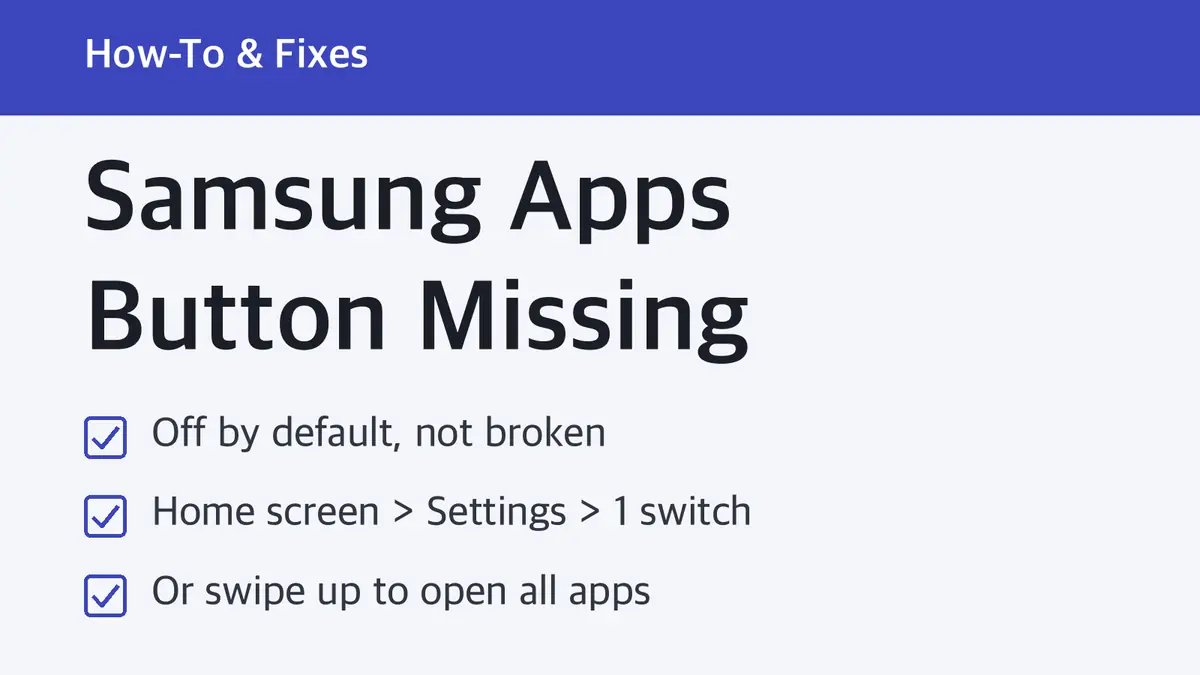
Samsung's UK support page (updated August 12, 2026) calls the removal of the Apps button one of One UI's design features. The goal is more space on the Home screen for the apps you use most.
The Apps screen itself is still there. From the Home screen, swipe up (or down) and every installed app is listed. Samsung's US support page says the same thing and then shows how to add the button back for people who prefer tapping.
This is not new to One UI 9. Galaxy owners have been asking where the Apps button went since the Galaxy S8 era. Engadget covered it again on November 8, 2026, with steps written for One UI 9.
How to turn the Apps button back on
Both routes lead to the same switch.
| Start from | Steps |
|---|---|
| Home screen | Touch and hold an empty spot (or pinch in) → tap Settings (gear icon, bottom right) → scroll down → turn on Show Apps screen button on Home screen |
| Settings app | Open Settings → tap Home screen → turn on Show Apps screen button on Home screen |
Go back to your Home screen. Samsung's US page says the button appears in the corner of your Home screen. Engadget reports that on One UI 9 it sits on the right side of the favorites dock at the bottom.
Samsung adds that available screens and settings can vary by carrier, software version, and phone model, so the switch may sit a little higher or lower in the list on your phone.
Apps button still missing? Check these 4 things
| # | What you see | Likely cause | Fix |
|---|---|---|---|
| 1 | No Apps screen at all. Swiping up shows only suggested apps and a search bar | Home screen layout is set to Home screen only | Settings → Home screen → Home screen layout → pick the option with a separate Apps screen → Apply |
| 2 | The switch is on, but one app is gone, not the button | The app is hidden | Touch and hold the Home screen → Settings → Hide apps on Home and Apps screens → tap the red minus on the app → Done |
| 3 | The button showed up, but the dock looks crowded | The favorites dock holds up to 5 apps | Drag a dock app elsewhere, or group dock apps into a folder |
| 4 | You can't move icons to make room | Lock Home screen layout is on | Touch and hold the Home screen → Settings → turn off Lock Home screen layout |
Home screen only layout
With Home screen only, Samsung puts every app on your Home screen pages, the way an iPhone does. You swipe left or right to see them all. There is no separate Apps screen, so an Apps button has nothing to open. If you want the drawer back, change the layout in Settings → Home screen → Home screen layout and tap Apply.
A missing app icon (hidden apps)
If you were really looking for one app, it may be hidden rather than deleted. Hidden apps don't show on the Home or Apps screens, but you can still open one by typing its name into the search bar on the Apps screen.
The favorites dock
The bottom row on the Home screen is reserved for favorite apps, and Samsung's US page says it holds up to 5. Engadget notes that the Apps button takes up a spot you could otherwise give to an app. If you want all five favorites plus the button, put a few dock apps in a folder.
Open all your apps without the button
You don't need the button to reach every app:
- Swipe up (or down) from the middle of the Home screen to open the Apps screen.
- If you have a lot of apps, swipe left or right on the Apps screen to see more pages.
- To make the list easier to scan, tap More options (three dots) on the Apps screen → Sort → Alphabetical order.
- To close empty gaps, tap More options → Clean up pages → OK.
If you rarely open the drawer, the swipe is faster than reaching for a button in the corner. If you hand your phone to someone who doesn't know the gesture, the button is worth turning on.
Which phones have One UI 9
Samsung began the official One UI 9 rollout on September 16, 2026, starting with the Galaxy S26, S26+, and S26 Ultra. The Galaxy Z Fold8 Ultra, Z Fold8, and Z Flip8 already had it at that point. Other Galaxy devices get the update gradually, so many phones are still on One UI 8.x. Samsung's support pages and Engadget's One UI 9 steps name the same switch, Show Apps screen button on Home screen, so look for that name whichever version you have.
Sources
- Samsung US: Access and organize the apps on your Galaxy phone
- Samsung UK: How to show or open all Apps on Samsung phone home screen
- Samsung US: Organize the Home screen on your Galaxy phone or tablet
- Samsung Global Newsroom: Samsung Begins Official Rollout of One UI 9
Steps checked against Samsung support pages on November 9, 2026. Menu names can change with One UI updates.
Related guides
 Samsung Second Screen: Needs a Tab S7 or Newer and a Miracast PCSamsung Second Screen turns a Galaxy Tab into a wireless monitor for a Windows PC. It needs a Tab S7 or newer and a…
 Galaxy AI Supported Languages: 24, Now With Hungarian and MalaySamsung's October 2026 update brings Live Translate, Interpreter, Note Assist and Transcript Assist to 24 languages.…