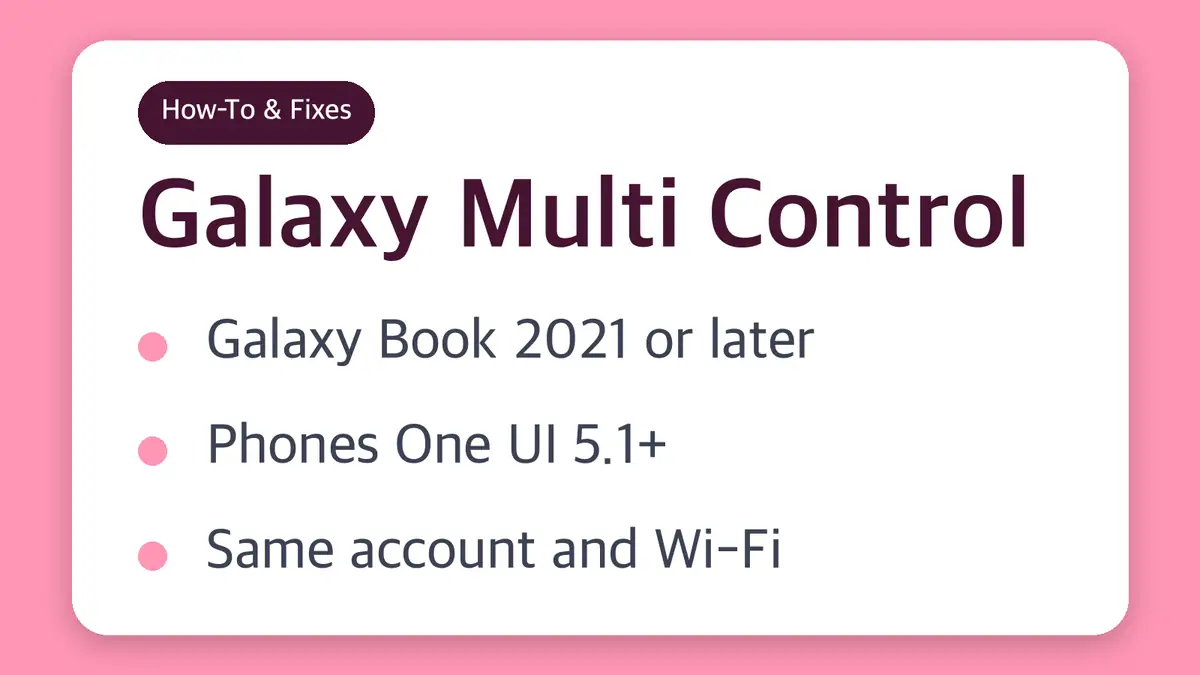
A Windows laptop or desktop from another brand is not on Samsung's list, so it won't work there no matter which settings you change.
Last updated: November 16, 2026
Galaxy Multi Control requirements
Multi Control lets one keyboard and mouse (or a Galaxy Book's touchpad) move between a Galaxy Book, Galaxy Tab, Galaxy phone, and some Samsung smart monitors and TVs. You can copy text on one device and paste it on another, and drag files across.
| Device | What Samsung lists |
|---|---|
| Galaxy phone | One UI 5.1 or later (Android 13) |
| Galaxy tablet | One UI 4.1 or later (Android 12) |
| PC | Galaxy Book series released in 2021 or later |
| PC software | Samsung Settings v1.5 (Intel) or v3.3 (ARM) |
| 2025 smart monitor | M90SF, M80F, M70F |
| 2025 smart TV | U8000F or above |
| All devices | Same Samsung account, same Wi-Fi, Bluetooth on, Multi Control turned on |
Samsung's newer 2025 monitor guide lists One UI 5.1.1 or above for phones and tablets, so update to the latest One UI if you're on an older build. Samsung also notes that copy and paste or drag and drop may not work with some models and apps, and the feature isn't offered in China.
Does Multi Control work on a regular Windows PC?
No. Samsung only lists Galaxy Book laptops as supported PCs. An HP, Dell, Lenovo, or custom-built desktop running Windows isn't on the list, and neither is an older Galaxy Book.
| Your PC | Multi Control | What to use instead |
|---|---|---|
| Galaxy Book from 2021 or later | Supported | Nothing else needed |
| Galaxy Book from 2020 or earlier | Not supported | Phone Link |
| Any other Windows laptop or desktop | Not supported | Phone Link |
The 2020 Galaxy Book Flex is a common surprise: Samsung's support staff have said it no longer gets Samsung Settings updates, so it can't run Multi Control.
The closest option on other PCs is Microsoft's Phone Link. It mirrors your phone's notifications, messages, and apps on the PC, but it doesn't hand your keyboard and mouse over to the phone the way Multi Control does. Phone Link needs:
- A PC on Windows 10 (October 2022 update or later) or Windows 11
- An Android phone on Android 10 or later, with the Link to Windows app
- The phone and PC on the same Wi-Fi network
How to turn on Multi Control on a Galaxy Book
- On each phone or tablet, swipe down from the top of the screen with two fingers to open Quick settings. Make sure Wi-Fi, Bluetooth, and Multi control are on.
- On the Galaxy Book, open the Samsung Settings app and select Connected devices.
- Turn on the switch next to Multi control. If you're asked to sign in to your Samsung account or install supporting apps, follow the prompts.
- Select the phone or tablet you want to connect.
- Drag the device icons so the on-screen layout matches where the devices sit on your desk.
Now push the mouse pointer toward the edge where you placed the phone or tablet, and it will appear on that screen. Clicks and typing work as if the mouse and keyboard were plugged straight into that device. It also works with DeX on your phone or tablet.
On Galaxy Books from 2021 or later running Windows 10 or 11, you can also open Galaxy Book Experience, then the Multi control app, and turn it on there. If the devices don't sync, select your phone or tablet's name under Connect to and follow the on-screen steps.
How to use Multi Control between a phone and a tablet
You can skip the laptop and control a Galaxy phone from a Galaxy Tab, or the other way around. This combination needs a pointing device: a keyboard cover for the tablet, or a mouse plugged into the USB-C port on either device. Samsung's phone-and-tablet guide also asks for One UI 5.1 or later on both and recommends 5GHz Wi-Fi.
| Step | Where to tap on the controlling device |
|---|---|
| Open the menu | Settings > Connected devices > Multi control |
| Pick the other device | Connect phone (or Connect tablet), then choose it from the list |
| Set the layout | Phone location (or Tablet location) |
Menu names can vary slightly by model and One UI version.
How to move files with Multi Control
- Drag and drop: hold a file in Windows File Explorer, My Files, or Gallery and drag it to the other screen. It lands in the Downloads folder on the receiving device. If you drop it into an open folder in My Files, it goes into that folder.
- Keyboard: select a file, press Ctrl + C, move to the other device, and press Ctrl + V.
You can't drag and drop files from one phone to another phone. Phone-to-tablet and phone-to-Galaxy Book work.
How to turn off Multi Control
Turn off the same Multi control switch you used to turn it on: in Samsung Settings > Connected devices on the Galaxy Book, or in Quick settings (or Settings > Connected devices) on the phone or tablet. If the pointer keeps slipping onto your phone by accident, you can also move the phone's icon in the layout screen to an edge you rarely use.
Multi Control not connecting: 8 checks in order
These steps follow what Samsung's support staff recommend on the Samsung Members community, from the quickest fix to the slowest.
- Same Samsung account. Confirm the phone, tablet, and Galaxy Book are signed in to the exact same account.
- Toggle Multi Control. Turn it off and back on in the phone's Quick settings.
- See where it fails. In Samsung Settings > Connected devices > Multi control on the Galaxy Book, check whether your phone appears at all, or appears but won't connect.
- Same Wi-Fi router. Both devices need to be connected to the same Wi-Fi router (access point), not just Wi-Fi in general. Keep Bluetooth on for both.
- Sign out and back in. Sign out of your Samsung account on the Galaxy Book, then sign in again.
- Update Samsung apps. Open the Microsoft Store, go to Library, and install any updates for Samsung apps.
- Check Samsung Continuity Service. Open Task Manager on the Galaxy Book and make sure Samsung Continuity Service is running.
- Free the device from a monitor. If the phone or tablet is already connected to a Samsung smart monitor, disconnect it there before pairing from the Galaxy Book. A smart monitor can hold up to three Multi Control devices.
If none of this works on a supported setup, send an error report through the Samsung Members app with your models and what happens. Samsung's moderators point users there so the developers can see the logs.
Multi Control vs. Second Screen
The two features are easy to mix up. Multi Control keeps each device's own screen and moves your mouse and keyboard between them. Second Screen turns a Galaxy Tab into an extra monitor for a Windows PC, and it works with more PCs because it relies on Windows Wireless Display (Miracast) rather than a Galaxy Book.
| Multi Control | Second Screen | |
|---|---|---|
| What it does | One keyboard and mouse across separate devices | Tablet becomes a second display for the PC |
| Supported PCs | Galaxy Book from 2021 or later | Windows PCs with Miracast |
| Phones | Yes | No |
If you only want more screen space, Second Screen is the better fit. If you want to answer phone messages without picking up the phone, Multi Control is the one.
Sources
- Samsung US: Use Multi control to share a keyboard and mouse between Galaxy devices
- Samsung US Business: Galaxy connected experience
- Samsung US Newsroom: Expanding the Galaxy ecosystem
- Samsung: How to use Multi Control on a 2025 Samsung Smart Monitor or TV
- Samsung: Navigate your Galaxy phone and Galaxy tablet using Multi control
- Microsoft Support: Phone Link requirements and setup
Related guides
 Samsung Second Screen: Needs a Tab S7 or Newer and a Miracast PCSamsung Second Screen turns a Galaxy Tab into a wireless monitor for a Windows PC. It needs a Tab S7 or newer and a…
 Galaxy Book 6 Price: From $799.99, Pro $1,799.99, Ultra $2,899.99Every Galaxy Book6, Book6 Pro, Book6 Ultra and Book6 Edge price on Samsung's US store as of November 9, 2026, how…
 Samsung Apps Button Missing? Get It Back in Home Screen SettingsGalaxy phones hide the Apps button by default to free up room for app icons. One switch in Home screen settings…